Kuanza
Sign up
Create a Public account on the web, Android, or iOS.
You can sign up with email and password, an email sign-in code, or Google. Every app uses the same accounts — sign up once and you can use it everywhere.
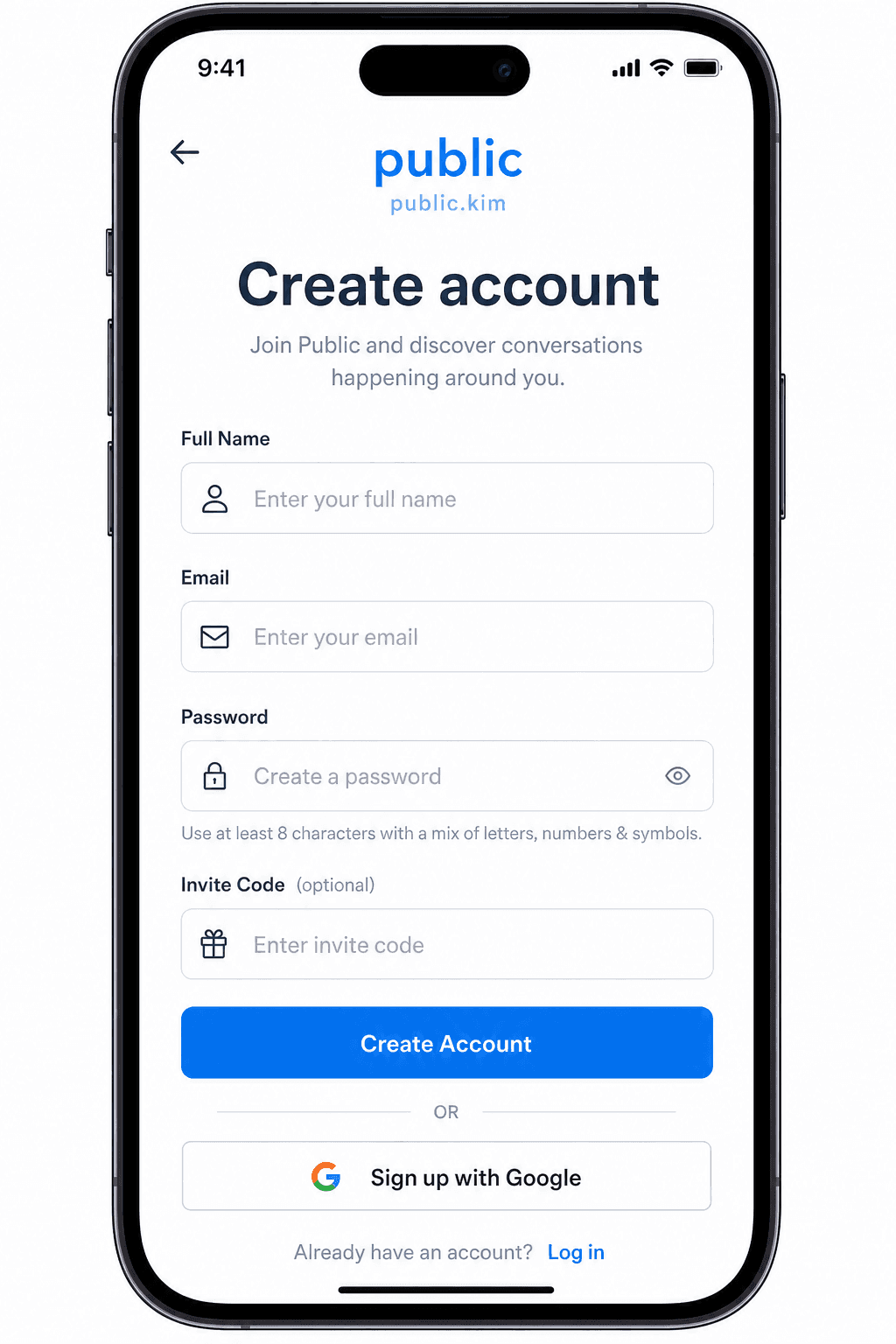
On the web
- Go to public.kim/signup.
- Fill in:
- Full Name
- Invite Code (Optional) — paste it if a friend shared one. See Invite for what codes do.
- Email Address
- Password — at least 6 characters.
- Select Create Account.
- Check your email and click the confirmation link. After confirming, sign in.
You can also choose Sign up with Google on the same page to skip the password step.
On Android
- Open Public and tap Sign Up.
- Fill in your email, password, and an optional invite code.
- Tap Sign Up, then verify your email when prompted on the Please Verify Your Email screen.
You can also use Sign Up with Google.
On iOS
- Open Public and choose Create account.
- Enter your name and email.
- Tap Continue with email to receive a sign-in code, or tap Use email and password instead and set a password (at least 6 characters). Password sign-up still emails a code to verify your address.
- Enter the code from your email.
- You can also tap Continue with Google.
Phone-number sign-up is not currently exposed in the apps. Sign up with email or Google.
Tips
- Use a strong, unique password.
- Your email confirmation link comes from our auth provider. If it doesn't arrive within a few minutes, check spam or request a new one from the sign-in screen.
- After your first sign-in, finish the welcome onboarding — see First steps.
What if it fails?
See Cannot sign in.
Maswali ya kawaida
- Je, ninahitaji msimbo wa mwaliko ili kuunda akaunti?
- Hapana. Misimbo ya mwaliko ni ya hiari. Weka moja wakati wa kujiandikisha ikiwa tu rafiki ameishiriki.
- Je, ninaweza kujisajili na Google?
- Ndiyo. Chagua Jisajili na Google kwenye wavuti, Android, au iOS skrini ya kujisajili. Unaweza pia kutumia barua pepe na nenosiri, au msimbo wa kuingia kwa barua pepe kwenye iOS.