Sign up
Create a Public account on the web, Android, or iOS.
You can sign up with email and password, an email sign-in code, or Google. Every app uses the same accounts — sign up once and you can use it everywhere.
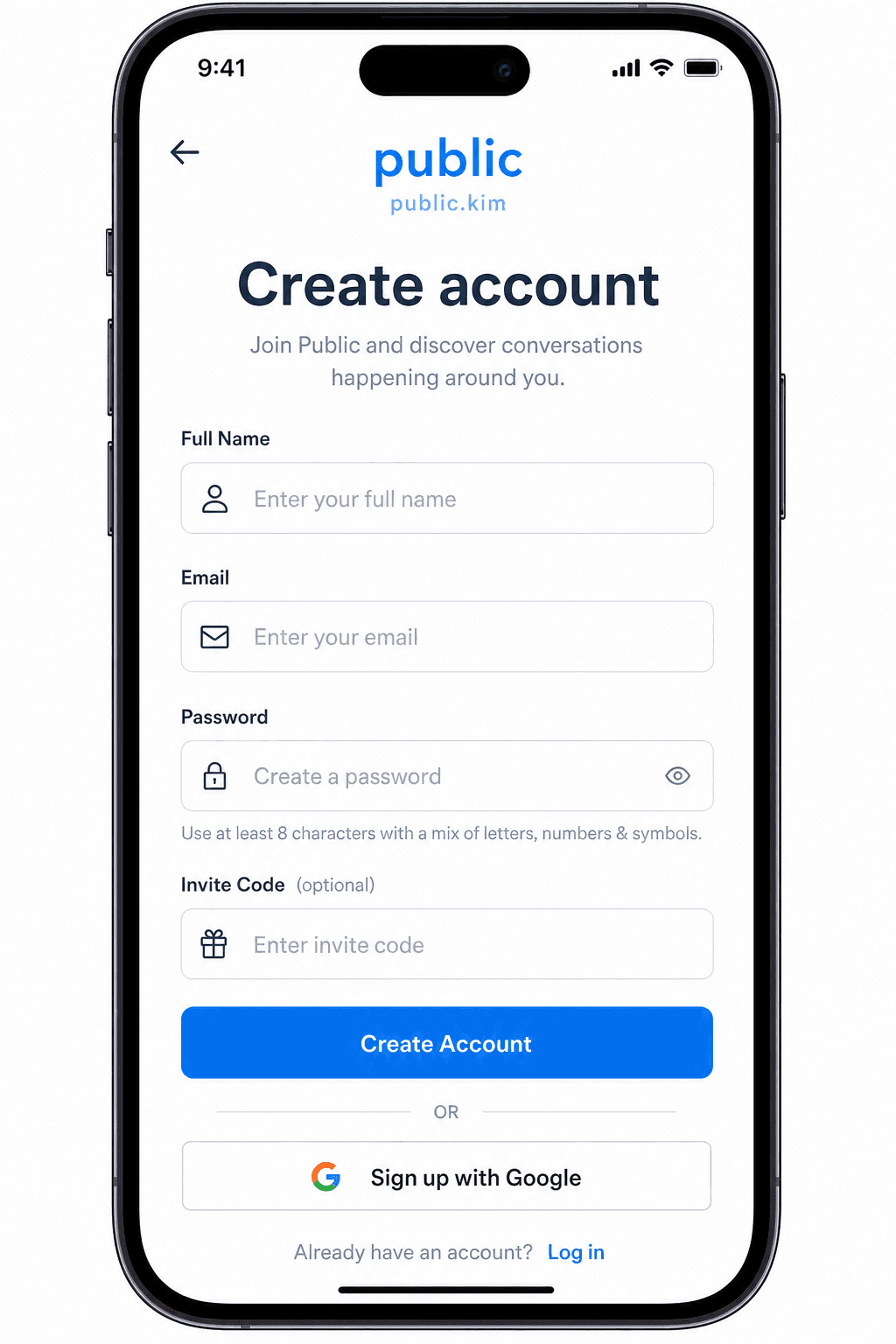
On the web
- Go to public.kim/signup.
- Fill in:
- Full Name
- Invite Code (Optional) — paste it if a friend shared one. See Invite for what codes do.
- Email Address
- Password — at least 6 characters.
- Select Create Account.
- Check your email and click the confirmation link. After confirming, sign in.
You can also choose Sign up with Google on the same page to skip the password step.
On Android
- Open Public and tap Sign Up.
- Fill in your email, password, and an optional invite code.
- Tap Sign Up, then verify your email when prompted on the Please Verify Your Email screen.
You can also use Sign Up with Google.
On iOS
- Open Public and choose Create account.
- Enter your name and email.
- Tap Continue with email to receive a sign-in code, or tap Use email and password instead and set a password (at least 6 characters). Password sign-up still emails a code to verify your address.
- Enter the code from your email.
- You can also tap Continue with Google.
Phone-number sign-up is not currently exposed in the apps. Sign up with email or Google.
Tips
- Use a strong, unique password.
- Your email confirmation link comes from our auth provider. If it doesn't arrive within a few minutes, check spam or request a new one from the sign-in screen.
- After your first sign-in, finish the welcome onboarding — see First steps.
What if it fails?
See Cannot sign in.
常見問題
- 我需要邀請碼才能建立帳戶嗎?
- 不需要。邀請碼是可選的。僅當朋友分享時才在註冊時輸入。
- 我可以註冊 Google 嗎?
- 是的。選擇在網路上使用 Google 註冊、Android 或 iOS 註冊畫面。您也可以使用電子郵件和密碼,或iOS上的電子郵件登入代碼。