Posts
Compose posts with text and media, and interact with posts from others.
What a post can contain
- Text with #hashtags and @mentions rendered as links. Posting URLs (http/https or
www.) in the composer unlocks at Level 5 (post_links). - Up to 20 attachments per post (images and videos mixed).
- An NSFW flag — sensitive media is blurred for other users until they tap Show.
- An Anonymous flag on the desktop composer — the post shows without your name.
- A Post as Page option — if you own one or more Pages, you can post as a page instead of yourself.
- A Poll — ask a question with 2–6 options (text-only; no media on poll posts).
File limits
- Images: up to 20 MB each.
- Videos: up to 200 MB each.
Length limits
- Web (mobile composer at
/create): up to 500 characters. - Web (desktop composer): no hard cap, but keep posts readable.
- Android composer: up to 280 characters, with a live counter.
- iOS composer: same composer as Android — add text, photos, videos, and polls from the Home tab.
Create a post
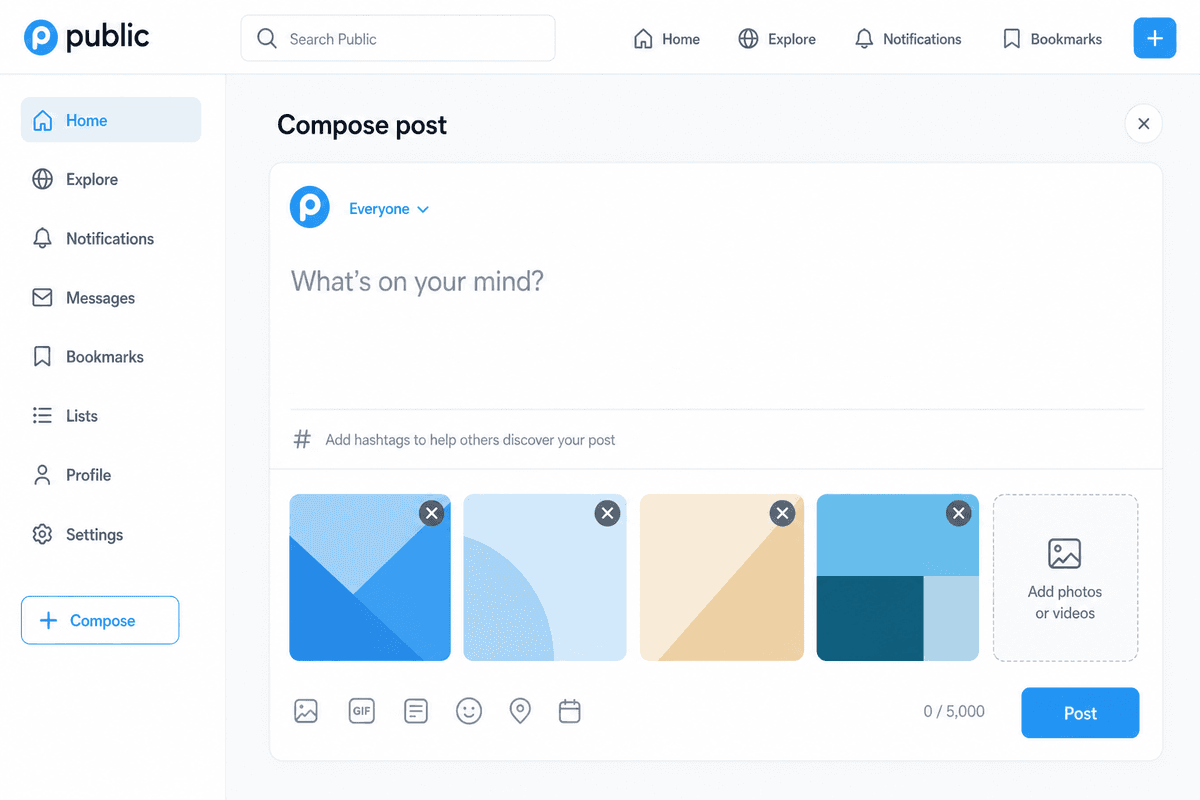
On the web
- Desktop: use the composer above the feed on
/news/*or your own profile. - Mobile (browser): tap the + Create button in the bottom bar to open
/create.
Add text, drag in or Click to upload images and videos, choose NSFW or Anonymous if needed, optionally pick a Page to post as, then select Post.
To create a poll, tap the poll icon in the composer toolbar. Poll mode hides media upload and shows:
- A question (the main text field).
- 2–6 options (add or remove options as needed).
- Duration: no limit, or 1, 3, or 7 days.
- Results visibility: Always show counts, or After I vote (the author always sees results).
Poll posts support the same NSFW, Anonymous, and Post as Page options as regular posts.
On Android
- Tap the + (Add Post) icon at the top of the Home tab.
- The composer opens with a placeholder What's on your mind?
- Pick photos and videos from your gallery, or use the Camera button to capture a new one (the app will request Camera permission the first time).
- Optionally toggle Anonymous or pick Yourself vs a Page name in the Post as dropdown.
- To create a poll, tap the poll icon, enter a question and 2–6 options, choose duration and results visibility, then tap Post.
- For a regular post (no poll), pick photos and videos as in step 3, then tap Post.
On iOS
- Tap the compose icon at the top of the Home tab (or Create from a deep link).
- Add text, then pick photos and videos with the system Photos picker, or capture with the Camera (the app will request Camera / Photos permission the first time).
- Optionally pick Yourself vs a Page or community in Post to.
- To create a poll, switch to poll mode, enter a question and 2–6 options, choose duration and results visibility, then tap Post.
- For a regular post, attach media as in step 2, then tap Post.
Polls
Poll posts appear in the feed like any other post. Tap an option to vote. You can change your vote until the poll closes.
- Duration: if set, the poll closes automatically when time runs out; open-ended polls stay open until deleted.
- Results: with After I vote, option counts stay hidden until you vote (the author always sees counts). With Always show, counts are visible without voting.
- After close: final results are shown; new votes are not accepted.
Poll posts support like, comment, save, share, and repost like regular posts. The poll question can be edited only before the first vote; options cannot be changed after posting.
Interact with a post
Every post card supports:
- Like — tap the heart to like or unlike.
- Comment — open the comments and write a top-level comment or reply to any comment (threaded replies at unlimited depth). The comment count includes all replies. You can post anonymously, and you can delete your own comments (deleting a comment also removes its replies).
- Save — add the post to your private Saved posts list (sometimes labeled Bookmark in the UI). Saving is only visible to you; other people do not see who saved a post.
- Share — copy the post link or share to other apps. On web there's also a Twitter/X share link.
- Edit post / Delete post — on your own posts.
- Report post — on others' posts. See Reporting.
Saved posts
- Web: open a post’s action menu and choose Save (or Saved to remove it). Your list lives at
/bookmarks— use Saved posts in the sidebar or app menu. - Android: tap Save on a post card (home feed, hashtag feed, post detail, full-screen video, or Pulse). Open Saved posts from the Menu tab to browse or unsave from there.
- iOS: tap Save on a post card. Open Saved from the Menu tab to browse or unsave from there.
Saved posts respect the same visibility rules as the rest of the app (for example, posts from people you blocked disappear from your saved list the same way they do elsewhere). Rapid repeated save/unsave may be rate-limited like other post actions.
You may also see:
- A Sensitive content blur with Show / Hide for NSFW posts.
- A views count.
- A small Positive / Negative sentiment chip when content sentiment is available.
- An AI badge for posts attributed to a Character.
What is not in posts (yet)
Public does not currently support drafts, scheduled posts, or quote posts. Reposts (share to feed without comment) are supported on web, Android, and iOS.
Related
일반적인 질문
- 게시물에 이미지나 동영상을 몇 개까지 첨부할 수 있나요?
- 게시물당 첨부파일은 최대 20개입니다. 이미지는 각각 최대 20MB까지 가능합니다. 동영상은 각각 최대 200MB입니다.
- 익명으로 게시하거나 페이지로 게시할 수 있나요?
- 데스크톱 작성기에서 게시물을 익명으로 플래그 지정할 수 있습니다. 페이지를 소유한 경우 페이지로 게시할 수도 있습니다. 게시물 가이드를 참조하세요.