Sign up
Create a Public account on the web, Android, or iOS.
You can sign up with email and password, an email sign-in code, or Google. Every app uses the same accounts — sign up once and you can use it everywhere.
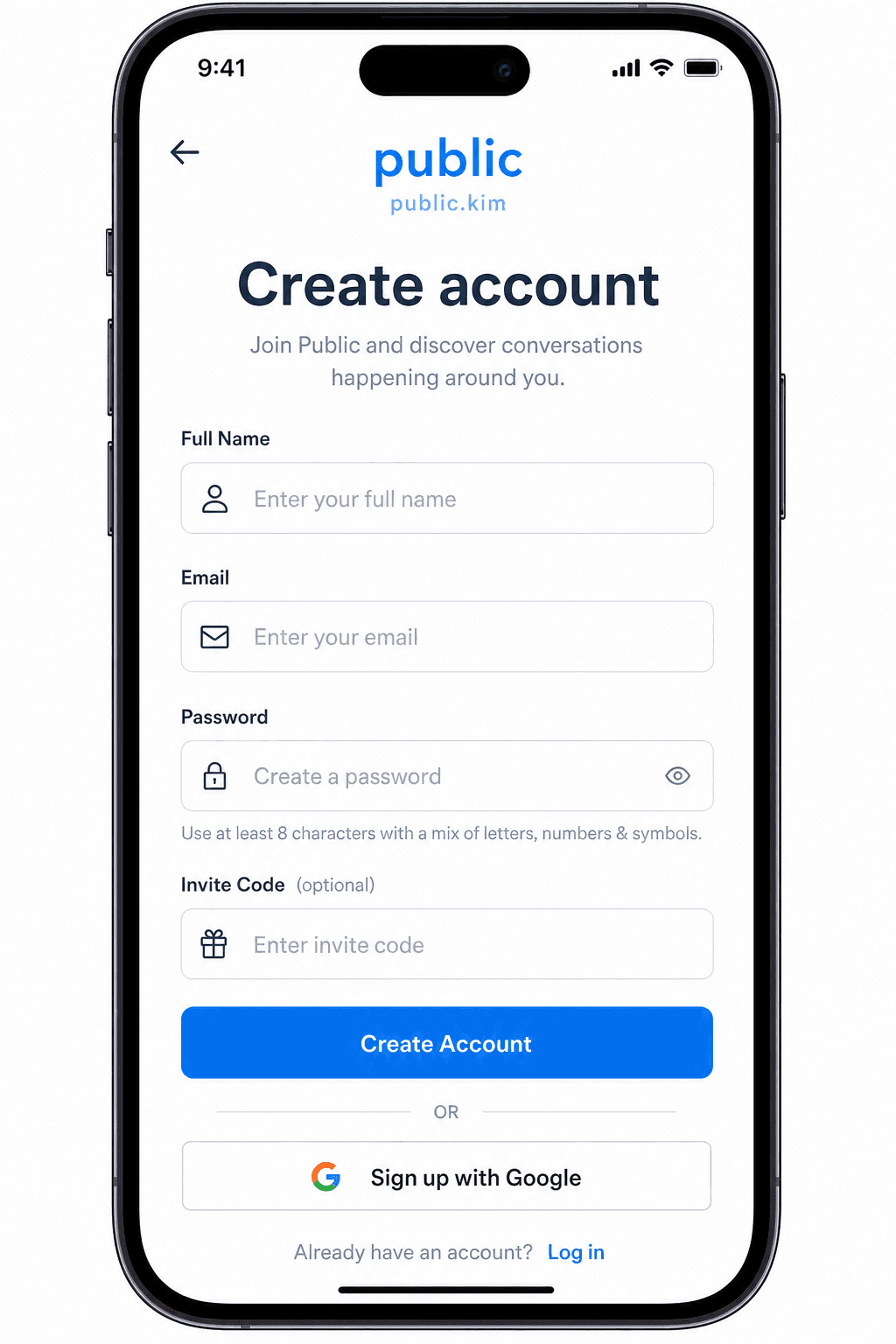
On the web
- Go to public.kim/signup.
- Fill in:
- Full Name
- Invite Code (Optional) — paste it if a friend shared one. See Invite for what codes do.
- Email Address
- Password — at least 6 characters.
- Select Create Account.
- Check your email and click the confirmation link. After confirming, sign in.
You can also choose Sign up with Google on the same page to skip the password step.
On Android
- Open Public and tap Sign Up.
- Fill in your email, password, and an optional invite code.
- Tap Sign Up, then verify your email when prompted on the Please Verify Your Email screen.
You can also use Sign Up with Google.
On iOS
- Open Public and choose Create account.
- Enter your name and email.
- Tap Continue with email to receive a sign-in code, or tap Use email and password instead and set a password (at least 6 characters). Password sign-up still emails a code to verify your address.
- Enter the code from your email.
- You can also tap Continue with Google.
Phone-number sign-up is not currently exposed in the apps. Sign up with email or Google.
Tips
- Use a strong, unique password.
- Your email confirmation link comes from our auth provider. If it doesn't arrive within a few minutes, check spam or request a new one from the sign-in screen.
- After your first sign-in, finish the welcome onboarding — see First steps.
What if it fails?
See Cannot sign in.
Cov lus nug
- Kuv puas xav tau tus lej caw los tsim ib tus account?
- Tsis yog. Caw cov lis dej num yog xaiv tau. Nkag mus rau ib qho thaum sau npe nkaus xwb yog tias tus phooj ywg qhia nws.
- Kuv puas tuaj yeem sau npe nrog Google?
- Yog lawm. Xaiv Sau npe nrog Google hauv lub vev xaib, Android, lossis iOS npo kos npe. Koj tuaj yeem siv email thiab lo lus zais, lossis email kos npe nkag rau ntawm iOS.