Install as a PWA
Add Public to your home screen or desktop so it opens like an app.
Public's web app is a Progressive Web App (PWA). After visiting public.kim, your browser may offer to install it. Once installed, it opens in its own window without browser tabs and can show desktop notifications.
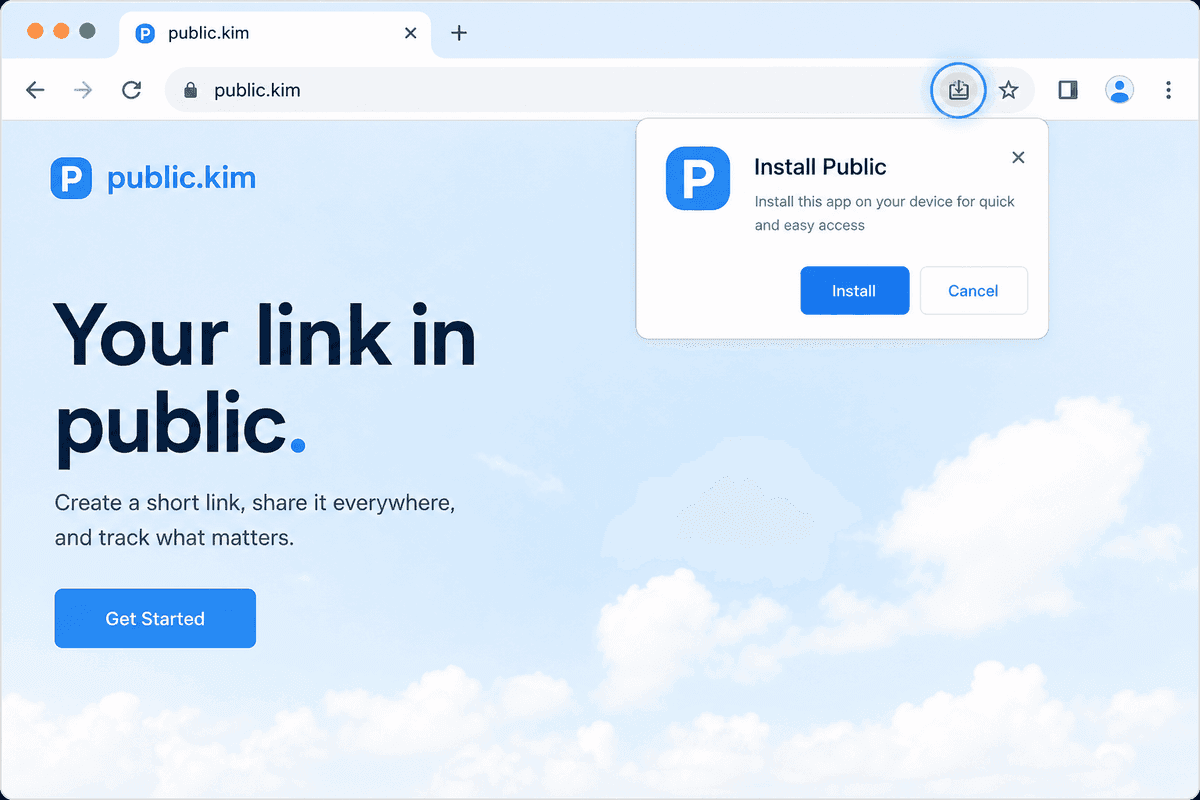
Install on a desktop browser
Chrome, Edge, Brave, Opera (Chromium browsers)
- Open public.kim and sign in.
- Look for the install icon in the address bar (a small monitor with a down arrow), or open the browser menu and pick Install Public… / Apps → Install this site.
- Confirm. Public is added to your Start menu / Applications and can be pinned to the taskbar/dock.
Safari (macOS)
- Open public.kim in Safari.
- Choose File → Add to Dock….
- Confirm the name and click Add.
Install on Android (browser PWA)
If you don't want the native app from Google Play, you can still install the website as a PWA:
- Open public.kim in Chrome.
- Tap the menu (⋮) and pick Install app or Add to Home screen.
- Tap Install.
Public will appear on your home screen with its own icon.
The native Android app gives you push notifications, in-app updates, and Picture-in-Picture for videos. The PWA is a great option if you can't use Google Play.
Install on iPhone or iPad
Prefer the native iOS app when it's available — see Install the iOS app. You can still add the website to your Home Screen:
- Open public.kim in Safari.
- Tap the Share button.
- Tap Add to Home Screen and confirm.
The native iOS app uses the bundle ID in.publicapp.ios and adds Home-tab navigation, push notifications, and App Store updates. The PWA is the Safari Home Screen shortcut to the same website.
Notifications after installing
The first time you load the installed app, your browser may ask for notification permission. Allow it to receive push notifications. See Web push notifications if they don't arrive.
Uninstall
- Desktop: open Public in its installed window, then choose Uninstall Public from the window menu.
- Mobile: long-press the home-screen icon and choose Uninstall or Remove.
Related
Common questions
- Is the PWA the same as the Google Play app?
- No. The PWA installs from the browser and is great when a store listing is unavailable. The native Android and iOS apps add push notifications and platform updates. On iOS you can also search the App Store for Public (bundle ID in.publicapp.ios).
- How do I install Public on iPhone?
- Search the App Store for Public (bundle ID in.publicapp.ios), or open public.kim in Safari, tap Share, then Add to Home Screen.